A simple Notion content calendar for video and blog posts
Plan a video and related blog post with a simple content calendar. See which fields you need and when a larger paid creator workspace may help.
If you make videos and publish related blog posts, start with one content database. Give each publication its own row, date and next step. You can keep the same source idea in both rows without treating them as the same deadline.
You do not need a large paid creator workspace to try that approach. The downloadable file in this guide is our original CSV starter example. It is not a ready-made duplicatable Notion template. We imported it into a private Notion test page on October 10, 2026, checked all six entries, and created calendar and status-board views. The steps below describe that test.
Start with six useful fields
A calendar becomes easier to maintain when each field answers a practical question. Here is a small schema you can adapt:
| Field | Suggested Notion type | What it answers |
|---|---|---|
| Content | Title | What are you publishing? |
| Channel | Select | Where will it appear: YouTube or Blog? |
| Status | Select | Is it an idea, outline, draft, ready or published? |
| Publish date | Date | When is this particular item planned? |
| Next step | Text | What is the next concrete action? |
| Source idea | Text | Which idea connects related publications? |
The Source idea field is just a shared text label. It is not a database relation. For a small example, that lets you recognize the pair without introducing another database. If you later need structured relationships, you can choose a more involved design.
Avoid adding fields simply because a template has them. Add one when it helps you make a decision or keep work moving.
Try one idea in two channels
Our fictional example starts with “Desk cable tidy.” A video can show the process; a blog guide can explain the measurement checklist. Neither entry represents a real publication or a commitment to this site’s schedule.
One idea. Two publication dates.
Filter a channel or move the first video's date. The blog keeps its own date. This is a website planning demo with fictional content, not a Notion screenshot or live publishing schedule.
| Content | Channel | Status | Publish date |
|---|---|---|---|
| Small desk cable tidy - video | YouTube | Outline | 10/15/2026 |
| Small desk cable tidy - blog guide | Blog | Idea | 10/17/2026 |
| Reading corner planning - video | YouTube | Idea | 10/22/2026 |
| Reading corner planning - blog guide | Blog | Idea | 10/24/2026 |
| Simple content planning - video | YouTube | Draft | 10/29/2026 |
| Simple content planning - blog guide | Blog | Outline | 10/31/2026 |
Showing 6 fictional entries. Changes stay in this browser until you leave.
Download the starter CSV ↓Moving a video’s date in this demo does not move the blog’s date. That illustrates a decision you still need to make: should the related post move too, or does its own deadline remain useful? Keep the two entries visible when reviewing your plan. The starter download keeps its original dates; it does not export the edits made in this demo.
Choose a clear next step for each item. “Write a shot list” and “Outline the measurement checklist” are easier to act on than leaving both entries labeled “Create content.” Update the status when that stage changes; a calendar cannot tell you whether the work is done.
Bring the sample into Notion
According to Notion’s import documentation, CSV rows become database entries and columns become properties. Our sample uses MM/DD/YYYY dates, the format specified in that documentation.
In our test, we opened a new private page, chose Actions → More → Import, selected CSV, and uploaded the starter file. The import location was our test page. Map CSV headers opened the property settings with Use first row as headers enabled.
Notion proposed Title for Content, Select for Channel, Date for Publish date, and Text for the remaining fields. We changed Status from Text to Select before choosing Import CSV. Next step and Source idea stayed Text. Check the mapping yourself rather than assuming every column will receive the intended type.
All six entries imported with their intended dates: October 15, 17, 22, 24, 29 and 31, 2026. We changed the first video’s date from October 15 to October 20 using its date picker; the related blog entry stayed on October 17. We then restored the video’s original date. These are fictional planning dates, not scheduled publications.
A CSV is a starting dataset. It does not include ready-configured calendar or board views, and a new CSV import does not create new relations, formulas or rollups. Re-importing adds entries rather than updating the original ones, so avoid accidental duplicates.
Keep the original file as a small reference. If you import it again for a new experiment, check where it will go and whether you are adding rows to a database you already use.
Choose views for different questions
Use a table to inspect all six fields and catch missing dates. We kept the imported Table view, then used Add view → Calendar, named it Calendar and checked Show calendar by: Publish date. Notion requires a Date property for this view.
For a board grouped by status, choose Add view → Board. Our new board initially grouped by Channel; we changed Group by to Status and named the view Status board. It showed three Idea entries, two Outline entries and one Draft.
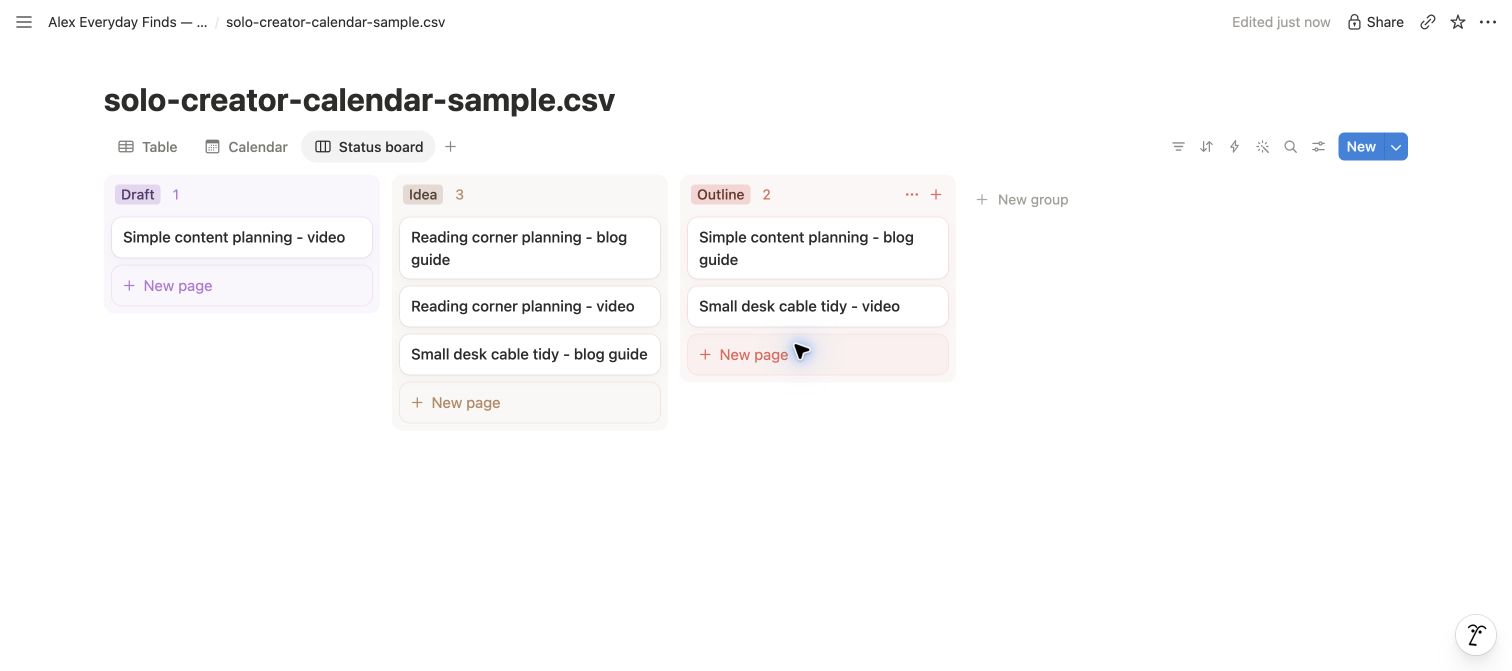
Actual Notion test, October 10, 2026. Views were configured after import; they are not included in the CSV download.
A channel filter lets you focus on one outlet. In Table, we selected Filter → Channel → is → Blog and saw exactly three blog entries. Removing that filter returned all six rows.
These views should look at the same entries, rather than keeping a separate copy of the plan for each view. When you move a deadline, review the next step as well: the date tells you when, while the task tells you what to do next.
This is planning, not automatic publishing. Recording a YouTube or Pinterest date in Notion does not by itself send the post to that platform. You still need an actual publishing process or a separately configured integration.
When a paid workspace may help
A larger system becomes worth considering when you need more than a publication calendar: separate tasks and sub-tasks, several content projects, research attached to each project, or coordinated channels. Those are criteria to evaluate, not a promise that buying a template will make you more productive.
Creator’s Companion is one option to investigate. Its author describes several editions, including an Ultimate Tasks version with project tasks and sub-tasks. That is a different scope from the small database in this guide.
We have not purchased or tested Creator’s Companion. Compare the current editions, included features, price and buying route on the author’s site before choosing. This guide gives you a small planning example; it does not rate or endorse the paid workspace.
If you are only scheduling a few video and blog items, try the simple database first. If a recurring limitation becomes clear, write it down and check whether a paid system directly addresses it. That gives you a reason to upgrade rather than a larger dashboard to maintain.
Keep the plan small enough to use
Start with the six sample entries, then replace their fictional content with your own ideas. Keep publication dates separate for each channel, make the next step concrete and review anything whose status has stopped changing.
The useful part is the habit of seeing the idea, the deadline and the next action together. A template can support that habit. It cannot make the choice or finish the work for you.
Sources & limitations
Product and documentation checks: 2026-10-09. Availability and prices can change. Read the linked sources for the current details.